Archives

Categories

More FREE Stuff

- Atomic Blogging 2.0 Leak Copy
- Blogging Videos
- Explode your Adsense earnings get Adsense Secrets 4.0 for only $9.95


Expandable menus

Filed Under (How To, Site maintenance) by Tricia on 30-10-2006

Have you noticed how the menus on my side bar roll up neatly? The automatically expand when you click the + sign beside the title of the menu.

If you’re wondering how I did that simply go to the Flooble website’s script section and select the Expandable Menu script. Just follow the directions, changing the text and background colors to suit your blog and within a few minutes you’ll have the code for the expandable script to put on your own website.

You need to make a new script for each menu that you create, but once you’ve made the first one with your customized colors it’s very easy.


Add this to : Digg! Digg it Bookmark! Save to Del.icio.us Subscribe to RSS Subscribe to My RSS feed
  1. Adding a blogroll to Typepad
  2. Adding a blogroll to Blogger
  3. Create a second WP blog in a directory or Subdomain
  4. Adding a blogroll to Wordpress on own domain
  5. How to remove nofollow tags in a Typepad blog


-->

Adding a blogroll to Blogger

Filed Under (How To, Site maintenance) by Tricia on 23-10-2006

The following instructions work for the old version of blogger. I’m not sure yet if they work for new blogger. If someone would let me know I’d appreciate it. These instructions also work for blogcharm and other HTML based templates too.

  • Go into your dashboard and make a new post (post like you would if you were blogging an entry).
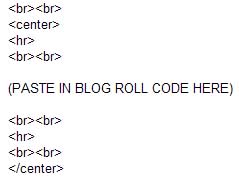
  • In that post, insert the script shown for the blogroll. Publish. IGNORE errors when you publish it – because blogger will give you an error.
  • Next, grab the link to that page (go into your blog, find that post, go to the specific page – grab the permalink and copy that URL of the permalink). Take that URL and put it in your sidebar link this: [a xhref=”LINK”]name of blogroll post[/a]
  • Insert your permalink where I have LINK.
  • This will put the blogroll on a page and will not clutter up your sidebar to slow down loading time.
  • Change the date so the blogroll isn’t on your main page. Open the post, at the bottom of the text box where it says > Post/comment options – click there, change the date if you don’t want it to be the first post (backdate it).
  • Publish.


Add this to : Digg! Digg it Bookmark! Save to Del.icio.us Subscribe to RSS Subscribe to My RSS feed
  1. Adding a blogroll to Typepad
  2. Adding a blogroll to Wordpress on own domain
  3. How to add a blogroll to B2Evolution
  4. Adding an image to your Wordpress post
  5. How to remove nofollow tags in a Typepad blog


-->

Adding a blogroll to Wordpress on own domain

Filed Under (How To, Site maintenance) by Tricia on 15-10-2006

These instructions are for adding a blogroll to Wordpress on your own domain. At this time we haven’t figured out how to add a blogroll to a wordpress.com blog, but it’s fairly easy to add one to Wordpress that is hosted on your own domain.

To put the blogroll code on a single page:

Go to the USER section on your DASHBOARD, and scroll down the user page until you find an area called PERSONAL OPTIONS – this will be in the lower left. Un-check the box beside “Use the visual rich editor when writing” and save options. You will now be writing your page in plain text.

Go back to the writing section and select WRITE NEW PAGE.

Give your page a title and perhaps use an image that might be supplied with the blogroll code that you are about to add to your site. Adding an image will create a nice looking header above the list on your new blogroll page. You can also link the image that you use to the home url of the blogroll that you are adding.

Paste the blogroll code into the page. The blogroll code will not work if you are writing in Rich Text so please be sure that you have done the very first instruction that I listed and switched to plain text mode.

Save your page and check to make sure it’s working.

You could also put the code in your sidebar:

Go into your WP admin section and select PRESENTATION, then select theme editor and select the correct theme.

Once you have opened the theme that you are using, you’ll find that the theme is open to the CSS Stylesheet file but all the other files that belong to the theme will be listed on the right.

You want to select your SIDEBAR page.

Find an appropriate place in your sidebar for the blogroll code. You can put an image header above the blogroll if you like and then past the blogroll code into your sidebar. You may have to enclose the blogroll code with list tags < li > < / li > or < div > < / div > (no spaces between selected li or div codes, blogroll code should go in the middle of either of these codes. )

If you’ve posted the code in correctly you should have a new blogroll in your sidebar. If by chance the blogroll isn’t working go back and make sure that there are no spaces in the code. Usually the only space in the code is right after SRC.

I hope that you’ve found this information helpful.


Add this to : Digg! Digg it Bookmark! Save to Del.icio.us Subscribe to RSS Subscribe to My RSS feed
  1. Adding a blogroll to Typepad
  2. Adding a blogroll to Blogger
  3. How to add a blogroll to B2Evolution
  4. Adding an image to your Wordpress post
  5. Aligning image and video code in blog posts


-->

Categories